
Functional Expenses
Open in NocthinkModule: Accounting · URL: /accounting/functional-expenses · Responsible role: Accounting Staff · Also used by: F.A.T Manager (full; the only accounting role that can Run allocation), Owner/Director (full); Finance Staff / Finance Manager (read-only)
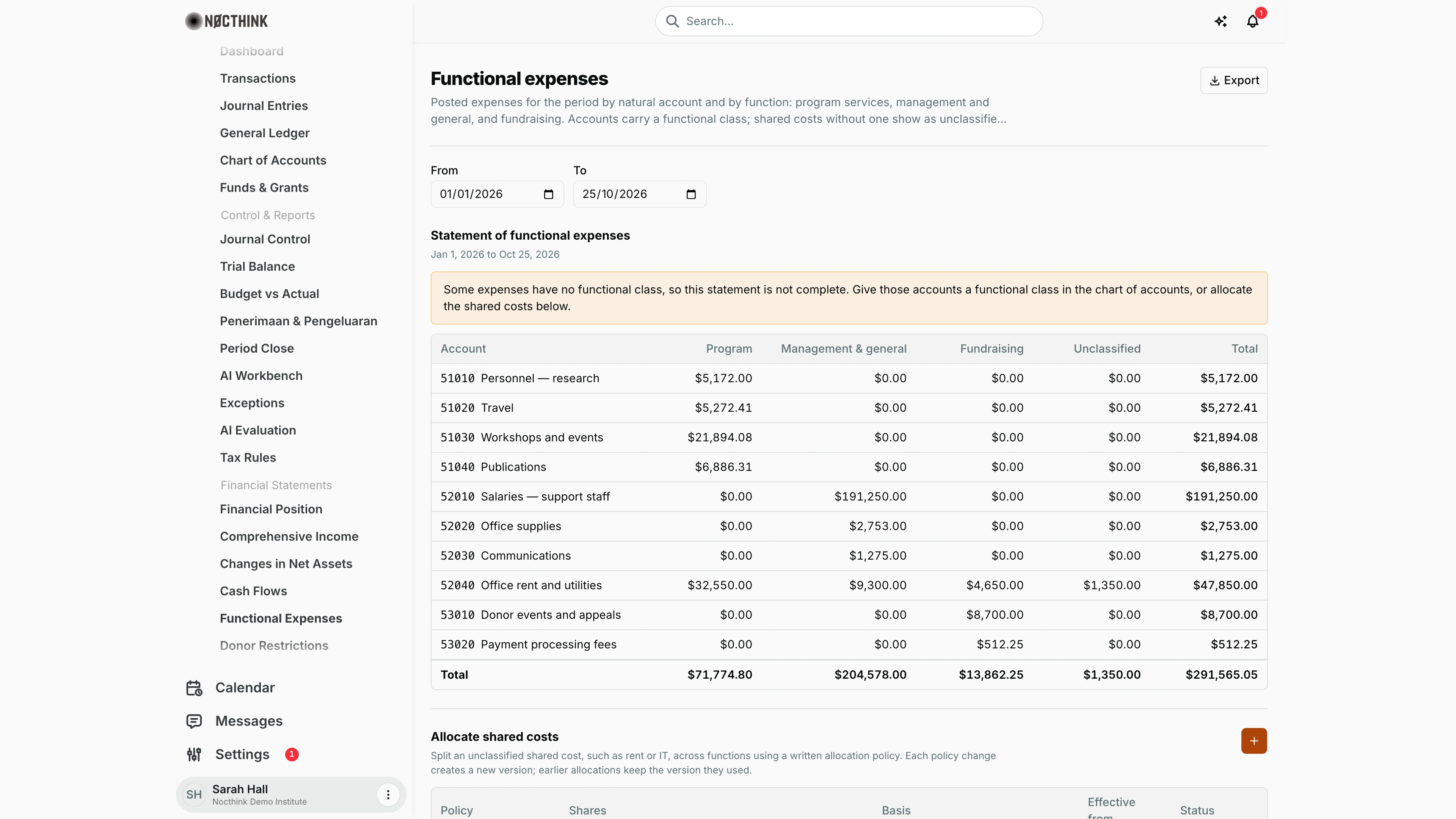
Screenshot: Sarah Hall (Finance Manager, also holds the F.A.T Manager role), Nocthink Demo Institute demo data. The policies table and the Run allocation form are below the fold.
Why I use this page
Nonprofit reporting under ASC 958, the Form 990 Part IX and most donor audits need every expense shown both by natural account and by function: program services, management & general, and fundraising. I use this page to produce that statement. I also use it to write allocation policies for shared costs such as rent or executive salaries, so the statement can be completed. I check it at month end, and at year end the statement must have no Unclassified column balance before it goes to the auditors.
What's on the screen
Header and dates
- The title is Functional expenses, with a short explanation underneath.
- Export at the top right, with PDF, Excel, CSV and JSON: one row per account and a totals row, for the dates set below.
- From and To dates default to 1 January of the current year and today (the date boxes use the browser's own date format,
01/01/2026and25/10/2026in the screenshot).
Statement of functional expenses
- Shows the period, for example "Jan 1, 2026 to Oct 25, 2026".
- An amber warning appears when anything is unclassified: "Some expenses have no functional class, so this statement is not complete…".
- The table has one row per Expense account (code and name). Its columns are Program, Management & general, Fundraising, Unclassified and Total.
- A Total footer row sums each column.
- In the demo, $1,350.00 of 52040 Office rent and utilities (September building maintenance booked "to allocate") is still unclassified; the rest of that account was already allocated.
Allocate shared costs
- A + button (New policy version) creates a policy version.
- The policies table has the columns Policy (name and version, e.g. "v2"), Shares (e.g. "Program 40% · Management & general 45% · …"), Basis, Effective from and Status (Current or Superseded).
- Below the table is the Run allocation form (only for users with
accounting.approve): Expense account, Policy, From, To and the Run allocation button.
How I …
Review the functional statement for a period
- Set From and To. Only Posted journals in that range are counted.
- Read the warning. If it is there, find rows with an amount in Unclassified.
- For an account that always belongs to one function (e.g. Travel → Program), I set its functional class on the account. That is easier than allocating. Ask the F.A.T Manager if the field is not on your account form.
- Shared costs (rent, IT, executive time) are allocated with a policy, as described in the next two sections.
Write or revise an allocation policy
- Click + (New policy version); see New allocation policy version below.
- Fill in:
- Name, e.g. "Office rent". Using an existing name creates the next version of that policy.
- Basis: the documentation behind the split, e.g. "Staff time survey, March".
- Effective from: the date the split applies from.
- Enter Shares (%) for Program, Management & general and Fundraising. The running Total must read exactly 100%, otherwise it turns red with "(must be 100%)" and Save policy stays disabled.
- Click Save policy. The new version shows as Current and the earlier version becomes Superseded. Allocations already booked keep the version they used.
Allocate a shared cost (F.A.T Manager)
- In Run allocation, pick the Expense account (only active Expense accounts are listed).
- Pick the Policy. Only Current versions are listed.
- Set From and To. From must not be after To, and the policy's Effective from must be on or before From.
- Click Run allocation. The system books one journal, already Posted and dated on To (reference
FUNCTIONAL-ALLOCATION, numberJV-FA-…). For each fund, it moves the account's unclassified posted amount into the policy's functions. The natural account and fund do not change. - The result shows: "Allocation booked as a reclassification journal with N lines." Reload the statement and the Unclassified amount for that account moves into the function columns.
Detail page, forms & dialogs
New allocation policy version
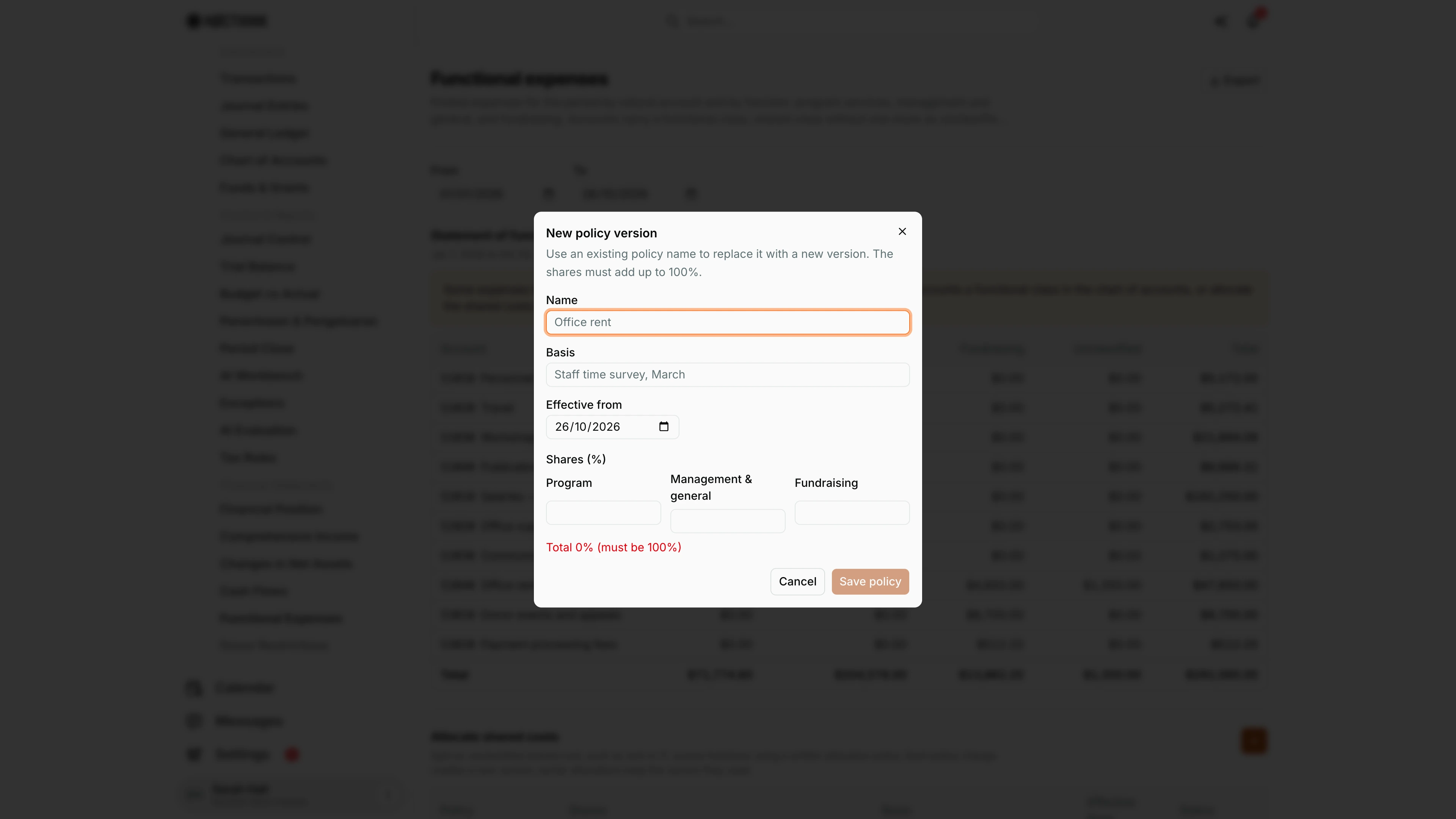
Screenshot: Sarah Hall (Finance Manager, also holds the F.A.T Manager role), Nocthink Demo Institute demo data.
The + in Allocate shared costs (New policy version) opens this dialog: "Use an existing policy name to replace it with a new version. The shares must add up to 100%."
Fields are Name (placeholder "Office rent"), Basis ("Staff time survey, March"), Effective from (today) and Shares (%) for Program, Management & general and Fundraising. Under the shares a live total reads, for example, "Total 0% (must be 100%)" in red; it turns grey at exactly 100%.
Save policy stays disabled until there is a name, an effective date and shares that add up to 100%. Saving under an existing name makes the new version Current and the old one Superseded. Cancel closes without saving.
Access & permissions
- Viewing the statement and policies requires
accounting.viewplus accounting authority: theaccounting-stafforfat-managerrole, oraccounting.approve. - Creating a policy version requires
accounting.create. Accounting Staff and the F.A.T Manager both have it. - Run allocation requires
accounting.approve, which only the F.A.T Manager (and Owner/Director) holds. The Run allocation form is shown only to users who hold it, so as Accounting Staff I prepare the policy and ask the F.A.T Manager to run it. - Finance Staff and Finance Manager are read-only here: their seeded roles include
accounting.view, and the server lets finance authority withaccounting.viewread the books. They can't create, change or post anything on this page.
Caveats
- An allocation is posted immediately and cannot be re-run. The same account and period can only be allocated once. A second attempt fails with "This account and period were already allocated; reverse that journal first." To correct it, reverse the allocation journal in Journal Entries, then run again.
- The period must be open. If To falls in a closed period (see Period Close), the run is refused.
- Only truly unclassified amounts move. If the account itself already has a functional class, the run fails with "This account already has a functional class; only unclassified shared costs are allocated."
- A run with nothing to allocate is refused with "There is no unclassified posted expense on this account in the period." This happens, for example, when the expense is still in draft.
- Rounding. The split is exact to the cent. Rounding remainders are spread so each fund's lines still sum to its pool.
- Line class wins. A journal line's own functional class takes priority over the account's class. The Unclassified column only shows lines where neither is set.
- The statement is organization-wide. There is no project filter.
Limitations
- There is no project or fund filter.
- Policies cannot be edited or deleted. A change always creates a new version. A policy cannot be retired without replacing it.
- Run allocation handles one account at a time; there is no batch run across all shared-cost accounts.
- There is no preview of the allocation lines before posting.
Related menus
- Comprehensive Income: the same expenses by natural account, split into program and other.
- Chart of Accounts: an account's functional class removes the need to allocate it.
- Journal Entries: find and reverse an allocation journal (
JV-FA-…). - Period Close: allocate before the month is locked.
- Donor Restrictions: the other ASC 958 statement for restricted net assets.