
Dashboard
Open in NocthinkModule: Accounting · URL: /accounting/dashboard · Responsible role: Accounting Staff · Also used by: F.A.T Manager (full), Owner/Director (full); Finance Staff/Manager (read-only)
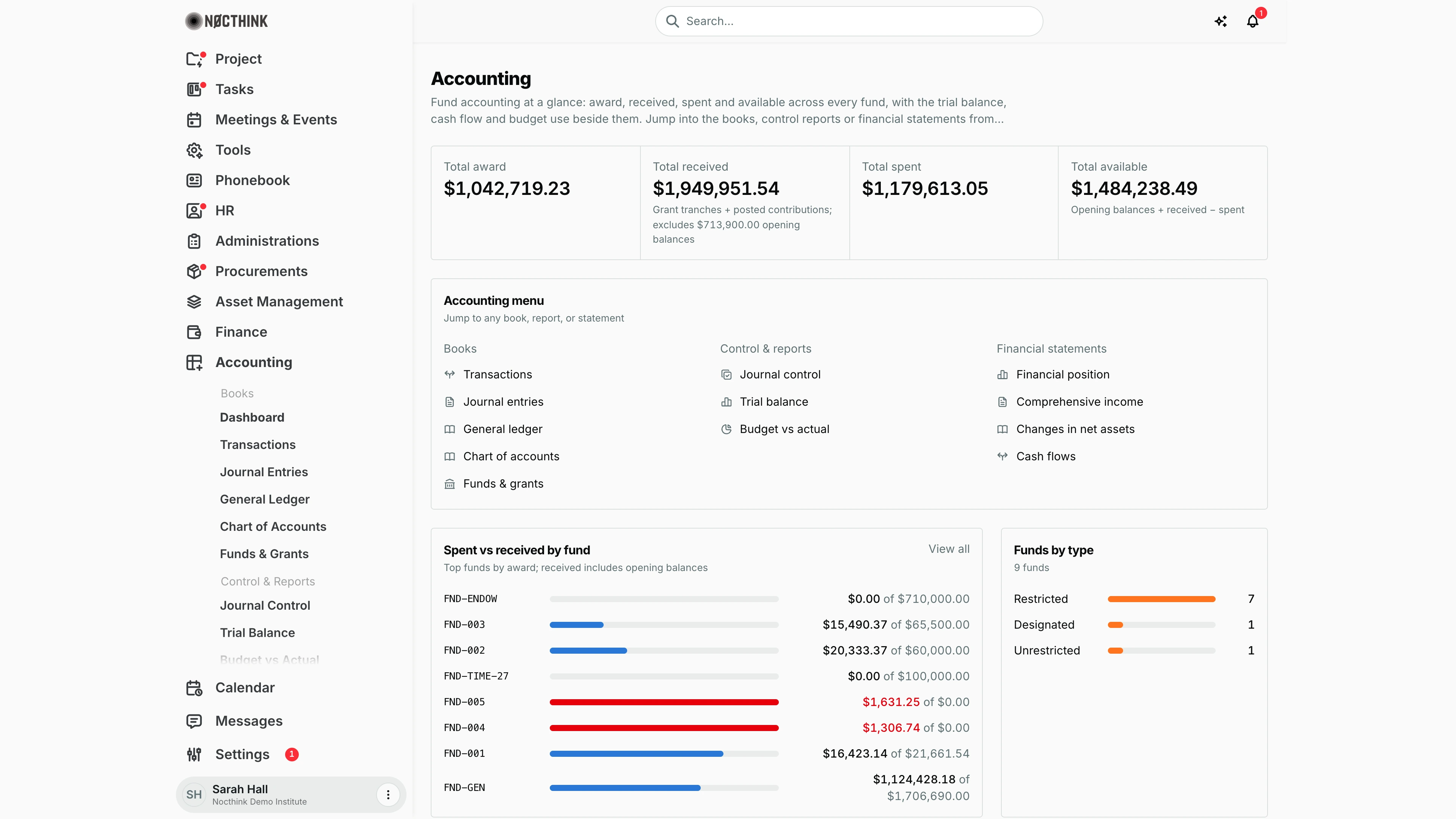
Screenshot: Sarah Hall (Finance Manager, also holds the F.A.T Manager role), Nocthink Demo Institute demo data.
Why I use this page
This is my landing page for the books. Before I start posting or reconciling, I check that award, received, spent and available still make sense across every fund, and that no fund has gone negative. At month end I come back here for a quick read on the trial balance and the cash flow before I open the full reports.
What's on the screen
- Header — the page title Accounting and a short description. There are no action buttons; the dashboard is read-only.
- Summary cards — four totals in the organization's base currency (dollars in the demo, e.g. Total spent $1,179,613.05):
- Total award: the sum of every fund's award converted into the base currency, the same figure as the ≈ amounts in the Award column of Funds & Grants. A fund with no exchange rate is left out, and the card names it underneath (for example "Excludes FND-X (no exchange rate)"; every demo fund has a rate, so no note shows).
- Total received: what has come in, in the base currency. For a fund linked to a project grant this is the sum of that grant's received tranches. For any other fund (the general fund, an endowment, a board-designated fund) it is what the ledger shows contributed to it: posted lines on Income accounts carrying that fund, credit minus debit, so a refund nets off the gift. This is the same basis as the Contributions (revenue) column of Donor Restrictions. Opening-balance journals and the net-assets release account are not contributions and are left out. The card says so underneath: "Grant tranches + posted contributions; excludes $713,900.00 opening balances" in the demo, the general fund's FY2023 net assets.
- Total spent: posted journal lines on Expense accounts (debit minus credit), per fund.
- Total available: opening balances plus received, minus spent. It is highlighted when it goes negative. The first three cards link to Funds & Grants.
- Accounting menu — shortcut links in three columns: Books (Transactions, Journal entries, General ledger, Chart of accounts, Funds & grants), Control & reports (Journal control, Trial balance, Budget vs actual) and Financial statements (Financial position, Comprehensive income, Changes in net assets, Cash flows).
- Spent vs received by fund — one row per fund for the eight funds with the largest award (funds with nothing received or spent are skipped). Each row shows the fund ID (hover for the name), a bar for the share spent, and "spent of received" in the base currency, where received includes the fund's opening balance. Each fund is on its own scale, so a small grant stays readable next to the general fund. A fund that has spent more than it has received, or spent with nothing received yet, shows in red. The heading links to Funds & Grants.
- Funds by type — how many funds are Restricted, Designated and Unrestricted (in the screenshot: 9 funds, 7 restricted, 1 designated, 1 unrestricted).
- Trial balance — debit and credit totals by account type, in millions.
- Cash flow — net Operating, Investing and Financing figures, in millions.
- Accounts by type — how many ledger accounts there are of each type (30 in the demo).
- Budget utilization (below the fold) — the eight donor budget lines, across all projects, with the highest share absorbed over all dates, with the project name under each line. The figures come from the same realization as Budget vs Actual (cumulative spend over approved budget). The bar stops at 100%, and a line that is over budget shows its real percentage in red. The section heading links to Budget vs Actual.
- Funds overview — a table with Fund ID, Name, Opening balance, Received, Spent and Available (a negative available amount shows in red), plus a Search funds… box. Hover a Received amount to see its basis (received grant tranches, or contributions posted in the ledger). The section heading links to Funds & Grants.
How I …
Check fund health at the start of the week
- Open Accounting → Dashboard.
- Read Total available. If the card is highlighted, at least one fund has spent more than it has received.
- Scroll to Funds overview and look for red amounts in the Available column.
- Type the fund name into Search funds… to narrow the table.
- Click the Funds overview heading to open Funds & Grants, then open the fund to check its award and received figures.
Spot a budget line that is running hot
- Scroll to Budget utilization.
- Lines over 100% show the percentage in red.
- Click the section heading to open Budget vs Actual and see the full breakdown.
Jump to a book or report
- In Accounting menu, click the item I need, for example Journal entries to post drafts or Trial balance to check that the ledger balances.
Access & permissions
- The sidebar shows the Accounting module only when I have
accounting.view. The server also requires accounting authority, which means theaccounting-stafforfat-managerrole, oraccounting.approve. Owners and Directors pass both checks automatically. - The page has no write actions.
- Finance Staff and Finance Manager are read-only here: their seeded roles include
accounting.view, and the server lets finance authority withaccounting.viewread the books. They can't create, change or post anything on this page.
Caveats
- All amounts are in the organization's base currency. The trial balance and cash flow charts are rounded to one decimal place in millions.
- Received here comes from the ledger for unlinked funds, while Funds & Grants shows the received amount typed on the fund ("Received (entered)"). The two can differ: in the demo the general fund has $713,900.00 typed there (its opening net assets), while here it shows the $713,900.00 as Opening balance and its posted gifts and contributions as Received. To change Received on this page for an unlinked fund, post the contribution as a journal; editing the fund's typed amount has no effect here.
- Received and Available are all-time, so they match Donor Restrictions only when that report is run without a start date (its opening column plus contributions). Transfers between funds — a release from restriction or a board designation — are not counted as received or spent, so Available does not move when net assets are reclassified.
- A grant-linked fund can show a red Available when expenses are posted before any tranche is marked received (FND-004 and FND-005 in the demo).
- Spent counts only Posted journals on Expense accounts. Drafts, and spending that is still a procurement invoice with no journal, are not included.
- For a fund linked to a grant, Received follows the grant's tranches. Typing a received amount on such a fund has no effect.
- Total award and the chart's ranking convert each fund's award from the fund's currency into the base currency (the grant's rate, the project's fixed rate, or the daily rate on the fund's start date). A fund with no rate available is left out of the total and named under the card, never added at its face amount.
Limitations
- No date or period filter: every total covers all time.
- No export from the dashboard; exports are on the individual reports.
- The Accounting menu card does not link to Penerimaan & Pengeluaran, Period Close, the AI pages, Tax Rules, Functional Expenses or Donor Restrictions. Use the sidebar for those.
Related menus
- Funds & Grants — where award and received amounts are maintained.
- Journal Entries — posting drafts is what moves Spent.
- Trial Balance — the full version of the trial balance chart.
- Budget vs Actual — the full version of Budget utilization.
- Cash Flows — the full statement behind the Cash flow chart.
- Finance Dashboard — the operational finance view (invoices, bills, payments).