
AI Evaluation
Open in NocthinkModule: Accounting · URL: /accounting/ai-evaluation · Responsible role: F.A.T Manager · Also used by: Owner/Director (full); Accounting Staff can open it and read the figures, but every setting, run, label, signature and cohort action needs accounting.approve
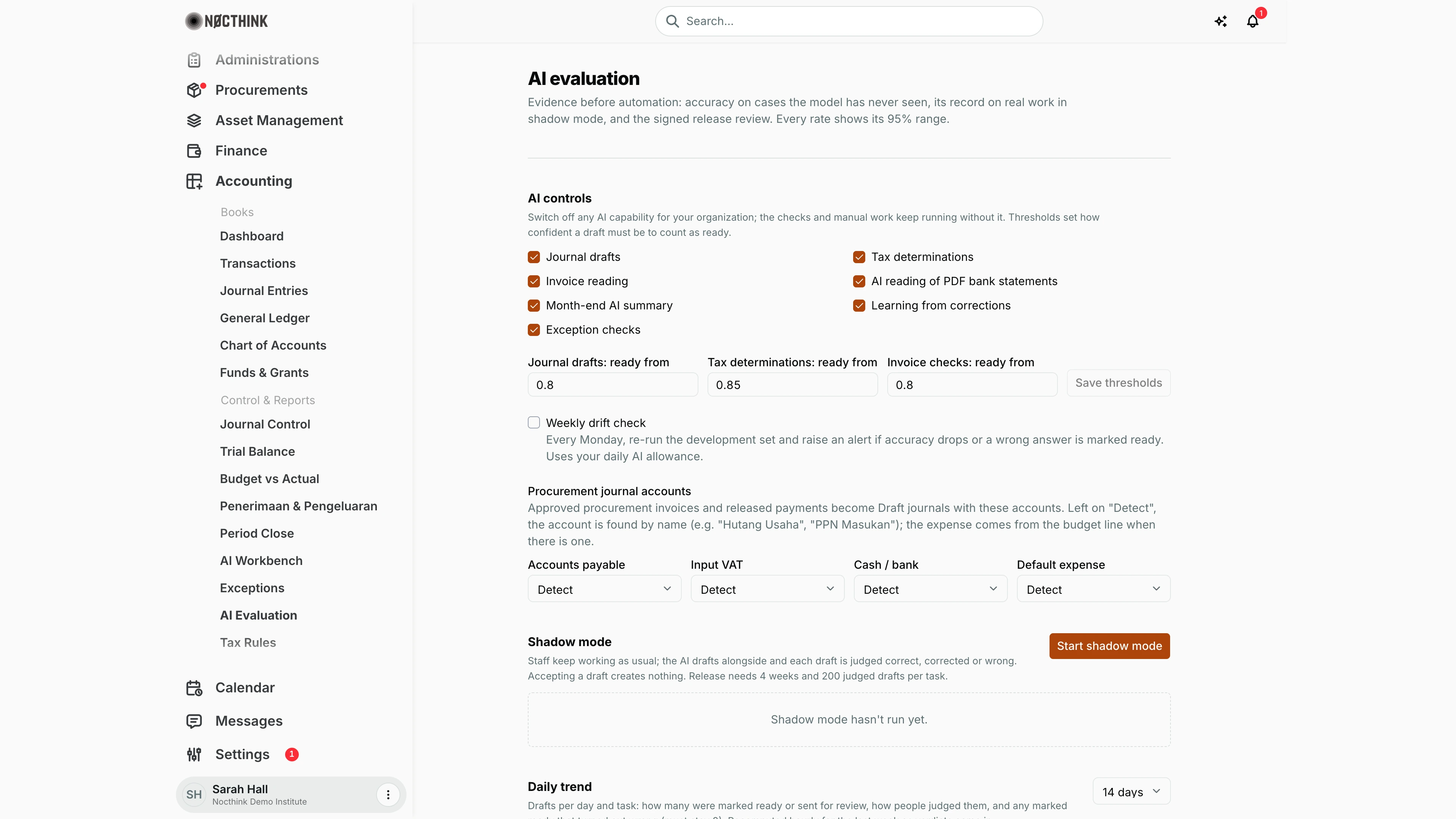
Screenshot: Sarah Hall (Finance Manager, also holds the F.A.T Manager role), Nocthink Demo Institute demo data. Only the top of the page fits in the screenshot; Evaluation runs, Labelled cases, Release review and Low-risk cohorts are further down.
Why I use this page
AI Evaluation is where I decide how far we trust the F.A.T. AI and keep the evidence for that decision. I switch AI capabilities on or off, set how confident a draft must be to count as "ready", run the model against labelled test cases it has never seen, run shadow mode on real work, and sign a release review before any low-risk cohort of drafts may be accepted in bulk. I look at it weekly (daily trend and drift) and whenever we change the prompt, model, chart of accounts or tax rules.
What's on the screen
Top to bottom:
- AI controls — one checkbox per capability: Journal drafts, Tax determinations, Invoice reading, AI reading of PDF bank statements, Month-end AI summary, Learning from corrections, Exception checks. Unticking switches it off for the organisation (shown struck through). Then Journal drafts: ready from, Tax determinations: ready from, Invoice checks: ready from with Save thresholds; a Weekly drift check checkbox; and Procurement journal accounts — Accounts payable, Input VAT, Cash / bank, Default expense, each Detect or a specific account.
- Shadow mode — Start shadow mode / Turn off. Once started: "Running · started … · day N of 28" and a table per task: Judged (of target), Correct (95% range), Corrected, Wrong, Wrong but "ready", Most corrected, Why wrong, p95. Before that: "Shadow mode hasn't run yet."
- Daily trend — 14 days / 30 days / 90 days; columns Day, Task, Drafts, Ready / review, Correct, Ready, wrong, p95, Tokens.
- Evaluation runs — task picker, set picker (Holdout, Development, Built-in), Run; table When, Task · set, Accuracy (95% range), Wrong but "ready", Deferred, Same answer each run, p95, Prompt · model.
- Labelled cases — counts per task (Holdout locked, Awaiting 2nd label, Disputed, Development), a Waiting for a second label list with I agree (or "needs a third person"), and Import cases (JSON array, up to 200) with Import.
- Release review — Task, What would be released, Measure gates; each review card lists gates with ✓/✗, actual vs target, signatures, and Sign.
- Low-risk cohorts — Task, Name, Up to (IDR), Debit accounts / Vendor keys / Tax rule codes, Define; each cohort card shows its rules, on/off, Accept N, Switch off, or a release-review picker and Switch on.
How I …
How I switch an AI capability off or tune a threshold
- In AI controls, untick the capability; it saves immediately and the related button elsewhere is refused.
- To change when drafts count as ready, edit the ready from value (between 0.5 and 0.97) and click Save thresholds.
- Tick Weekly drift check to re-run the development set every Monday and raise an alert on a drop.
How I map procurement journal accounts
- Under Procurement journal accounts, choose an active account for Accounts payable (Liability), Input VAT (Asset), Cash / bank (Asset) and Default expense (Expense).
- Leave Detect to let the system find the account by name (e.g. "Hutang Usaha", "PPN Masukan").
- The change saves on selection; blocked postings in Exceptions can then be drafted again.
How I run an evaluation
- In Evaluation runs, pick the task and the set — Holdout (locked double-labelled cases on our own chart of accounts and tax rules, run three times), Development, or Built-in synthetic cases.
- Click Run and wait for Running… to finish.
- Check Wrong but "ready" is 0 and read Accuracy (95% range) and Same answer each run.
How I label test cases
- Paste a JSON array (up to 200) into Import cases and click Import; the notice shows how many were added and why any were skipped.
- Holdout cases wait for a second person: a colleague opens Waiting for a second label and clicks I agree. A different answer marks the case disputed and a third person adjudicates.
How I sign off a release and enable a cohort
- Run shadow mode for at least 4 weeks and 200 judged drafts per task (Start shadow mode). During shadow mode accepting a draft creates nothing.
- In Release review, choose the Task, describe What would be released (at least 10 characters), click Measure gates.
- Click Sign. A second, different person signs too. If a gate fails, each signer must write why (at least 20 characters).
- In Low-risk cohorts, enter Name (at least 5 characters), Up to (IDR) and optional account / vendor / rule lists; click Define.
- Someone other than the person who defined it picks the signed release review and clicks Switch on.
- From then on Accept N accepts the matching drafts together (still only creating drafts); Switch off stops it.
Access & permissions
- The page is in the Accounting menu (
accounting.view), with no extra route gate, so Accounting Staff can see it. - Reading shadow stats, daily metrics, runs and release reviews needs accounting view. Changing AI controls or shadow mode, running evaluations, reading/importing/confirming labelled cases, creating/signing release reviews and defining/enabling/disabling cohorts all need
accounting.approve(F.A.T Manager, Owner/Director).
Caveats
- Turning shadow mode on starts a new 4-week clock each time.
- In shadow mode, rejections must state what went wrong, and AI payment request drafts are refused.
- Evaluation runs are throttled to 3 per user per 10 minutes and use the daily AI allowance; a run fails with "No locked … cases for … yet." if the set is empty.
- Each release signature must come from a different person, and a cohort cannot be switched on by the person who defined it.
- Cohort accept re-checks every draft on the server; drafts that no longer qualify are reported as "no longer qualified".
- Amounts in cohort rules are IDR.
Limitations
- No way to edit or delete a labelled case, retire a case, or adjudicate a dispute from this page (the API supports retire/adjudicate; the page does not expose them).
- No export of evaluation results.
- Only the 50 most recent runs and release reviews are listed.
Related menus
- AI Workbench — where drafts are produced and decided; its side panel shows the latest five runs.
- Exceptions — weekly drift alerts and procurement journals that use the account mapping.
- Tax Rules — rule versions that tax evaluations run against.
- Chart of Accounts — accounts offered in the procurement mapping.