
Exceptions
Open in NocthinkModule: Accounting · URL: /accounting/exceptions · Responsible role: Accounting Staff · Also used by: F.A.T Manager and Finance Manager (resolve, dismiss, run checks — needs approve rights), Owner/Director (full); Finance Staff can view the inbox through the finance gate if they can open the Accounting menu
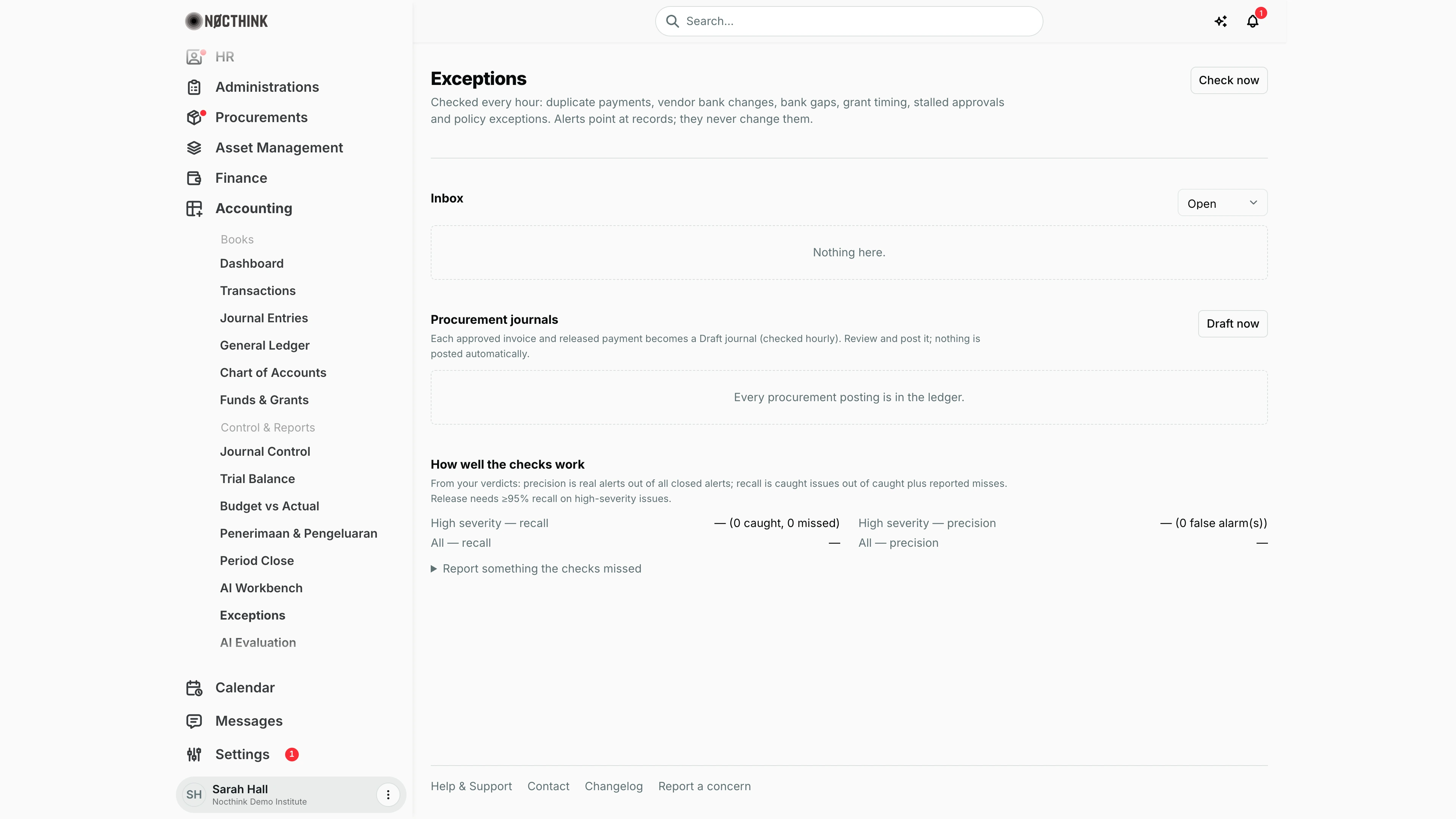
Screenshot: Sarah Hall (Finance Manager, also holds the F.A.T Manager role), Nocthink Demo Institute demo data. The demo tenant has no open alerts or pending procurement postings, so both lists are empty.
Why I use this page
Exceptions is the inbox for the automatic F.A.T. checks that run every hour: duplicate payments, vendor bank account changes, missing or unexplained bank statement lines, grants ending or spent after their period, stalled approvals and policy exceptions. Each alert points at the records involved; it never changes them. I go through it every morning, pick up what I can investigate, and hand anything that needs a decision to the F.A.T Manager. I also use the Procurement journals section to make sure approved supplier invoices and released payments have reached the ledger.
What's on the screen
- Header — Exceptions, the list of checks, and Check now (shows Checking… while running). After a run a notice reports "N new, N still open, N cleared." and any check that failed.
- Inbox with a status dropdown: Open (open + acknowledged, default), Resolved, Dismissed, All. Empty state: "Nothing here." Each alert card shows:
- Severity pill (high in warning colour, medium, low) and the check name — Duplicate payment, Vendor bank change, Missing statement, Unexplained bank lines, Grant ending, Spend after grant period, Stalled approval, Policy exception.
- Title and message, plus "status · since <date>" on the right.
- Evidence lines — links to the records, with amount and date.
- Resolution note on closed alerts ("Resolved: …" or "Not a problem: …").
- Buttons on open alerts: Looking into it (only while status is open), Real — resolved… and Not a problem…; for a vendor bank change, Confirm with vendor… instead and no dismiss.
- Procurement journals — "Each approved invoice and released payment becomes a Draft journal (checked hourly)." with Draft now. Lists postings not yet posted: status pill (pending, blocked, draft journal), Invoice accrual or Payment, a note explaining a block, the amount and the journal number link. Empty: "Every procurement posting is in the ledger."
- How well the checks work — High severity — recall, High severity — precision, All — recall, All — precision, computed from our verdicts; and a collapsible Report something the checks missed.
How I …
How I work through the open alerts
- Open Accounting → Control & Reports → Exceptions; the inbox shows Open, high severity first.
- Read the card and follow the evidence links to the payment, vendor, bank statement or grant.
- Click Looking into it so colleagues see the alert is acknowledged.
- When I have the facts, I write them up and pass the alert to the F.A.T Manager (or, if I hold approve rights, close it myself — next task).
How I close an alert as real or as a false alarm
- On the alert, click Real — resolved… or Not a problem….
- Type a note of at least 10 characters — "What you found and did" or "Why this isn't a problem".
- Click Resolve or Dismiss. Cancel backs out.
- The alert moves to Resolved or Dismissed and counts as a true or false positive in the metrics.
How I clear a vendor bank account change
- Call the vendor on a number we already had on file (not one from the email or invoice that changed it).
- On the alert, click Confirm with vendor….
- Note who I called, which known number, and what they confirmed.
- Click Confirm change. The verified account is recorded against the vendor. If the account changed again since the alert, the server refuses and a new alert must be reviewed.
How I get procurement postings into the ledger
- In Procurement journals, click Draft now to create Draft journals for newly approved invoices and released payments (it also runs hourly). A notice reports "N drafted, N blocked."
- For draft journal rows, click the journal number, review it and post it from Journal Entries.
- For blocked rows, read the note — usually a missing account mapping — and ask the F.A.T Manager to map the posting accounts, then click Draft now again.
How I report something the checks missed
- Expand Report something the checks missed.
- Choose Kind, fill What happened (at least 5 characters) and how it was found (at least 10).
- Click Report. It is recorded as a missed high-severity issue and lowers recall.
Access & permissions
- The menu needs
accounting.view. The API accepts either finance or accounting view for reading, acknowledging and reporting misses. - Check now, Draft now, resolving, dismissing and confirming bank changes require
approvein finance or accounting — F.A.T Manager, Finance Manager or Owner/Director. The seeded Accounting Staff role has no approve permission, so those buttons return a permission error for me.
Caveats
- High-severity alerts that open notify the owners and finance / F.A.T. managers (link back to this page).
- A vendor bank change can never be dismissed; it must be confirmed or the vendor record fixed.
- A dismissed alert only comes back if its evidence changes; an alert whose condition disappears is closed automatically by the next run.
- Check now and Draft now are throttled to 6 runs per user per 10 minutes, and Check now is refused if the alerts capability is turned off.
- Procurement postings never post themselves — a Draft journal still needs someone to post it.
- Evidence amounts and procurement-posting amounts display in the organisation's base currency (e.g.
$2,900.00in a USD organisation).
Limitations
- No search, sort or bulk actions on the inbox; up to 300 alerts are listed.
- No assignment of an alert to a named person — Looking into it does not record who.
- Metrics are totals only; no per-period trend.
- Detection thresholds cannot be configured from this page.
Related menus
- AI Workbench — the month-end checklist counts unbooked procurement postings and open statement exceptions.
- Journal Entries — post the Draft procurement journals here.
- Reconciliation — resolves missing statements and unexplained bank lines.
- Vendors — fix vendor bank details behind a bank-change alert.
- Invoices and Payments — approved invoices and released payments that feed Procurement journals.
- Funds & Grants — grant period alerts point at these funds.
- Period Close — close only once the inbox is clear.