
Comprehensive Income
Open in NocthinkModule: Accounting · URL: /accounting/comprehensive-income · Responsible role: Accounting Staff · Also used by: F.A.T Manager (full), Owner/Director (full); Finance Staff / Finance Manager (read-only)
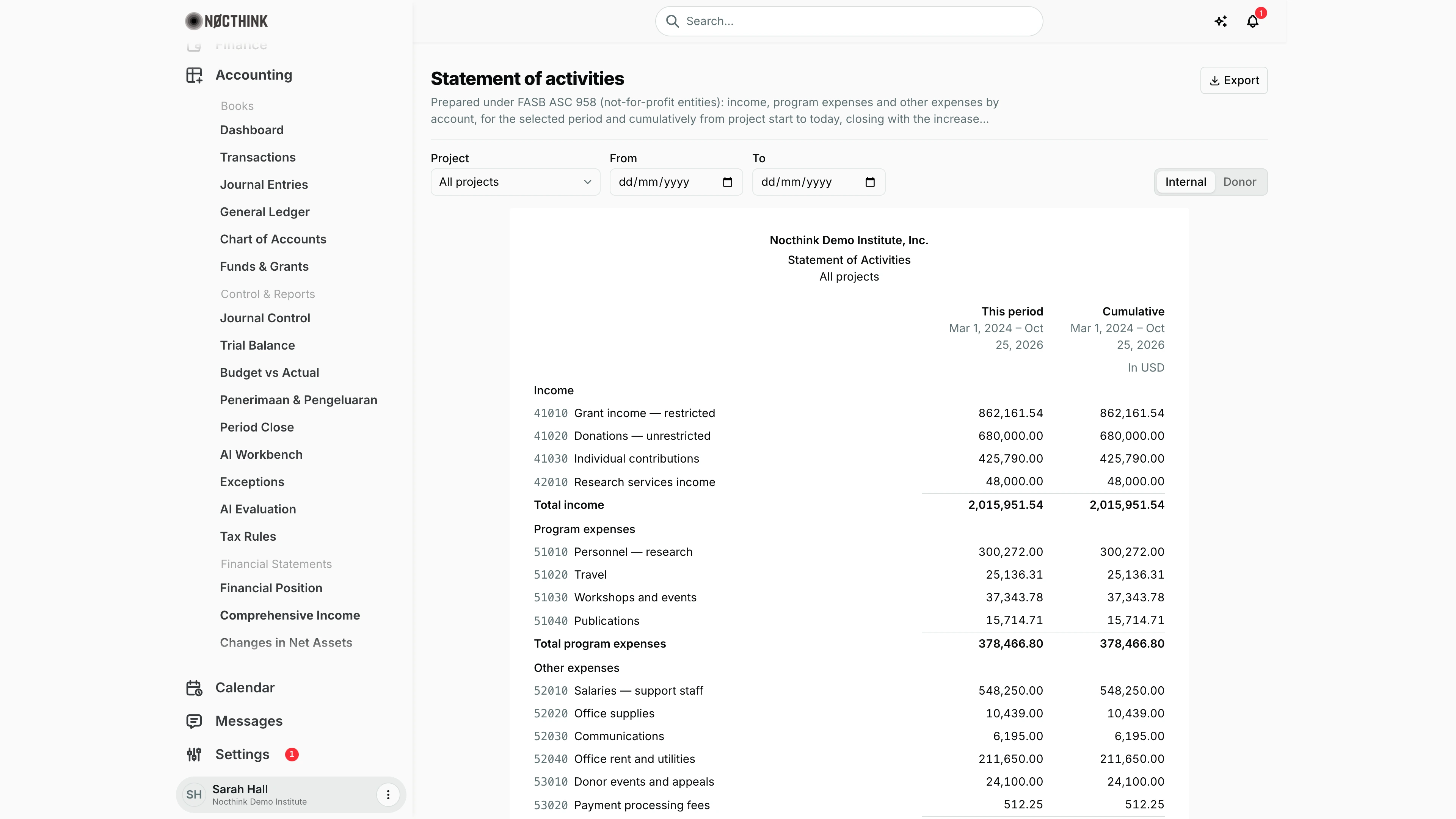
Screenshot: Sarah Hall (Finance Manager, also holds the F.A.T Manager role), Nocthink Demo Institute demo data.
Why I use this page
This page is the income statement. It shows what we earned and spent by account, for a chosen period and cumulatively, and closes with the increase or decrease in net assets. I run it at month end for management and at each donor reporting date for a single project, where the cumulative column shows spending since the project started.
What's on the screen
Header
- The title depends on the organization's framework:
- Statement of activities for ASC 958 organizations, such as the demo tenant.
- Statement of comprehensive income for ISAK 35 organizations.
- Below the title is a line naming the reporting standard.
- Export sits at the top right, with PDF, Excel, CSV and JSON.
Filter bar
- Project: defaults to All projects.
- From and To: the period dates.
- Reset period: appears once a date is set.
- Internal / Donor: a switch on the right.
The sheet
The statement itself is a printed-style sheet:
- At the top are the organization's legal name, the statement title (the same framework title as the page: Statement of Activities under ASC 958, Statement of Comprehensive Income under ISAK 35), and the project name or "All projects".
- There are two figure columns:
- This period shows the range taken from From–To; with both blank it matches Cumulative, as in the screenshot. Ranges are printed like
Mar 1, 2024 – Oct 25, 2026. - Cumulative runs from the first posting date (or the project's start date) to today.
- This period shows the range taken from From–To; with both blank it matches Cumulative, as in the screenshot. Ranges are printed like
- A currency caption such as "In USD" appears above the figures.
- The sections are:
- Income: one line per Income account, with its code, then Total income.
- Program expenses: Expense accounts whose statement section is "program" (the default), then Total program expenses.
- Other expenses: Expense accounts set to statement section "other", then Total other expenses.
- Increase (decrease) in net assets closes the sheet. It equals income minus both expense totals.
- Negative figures show in parentheses.
How I …
Run the monthly statement of activities
- Make sure the month's journals are Posted. Use Journal Control to check.
- Leave Project on All projects.
- Set From to the first day of the month and To to the last day.
- Read This period for the month and Cumulative for the result to date.
- Choose Export → PDF for the pack or Export → Excel for analysis. Both column headers carry the date ranges.
Prepare a donor financial report for one project
- Pick the project in Project.
- Set From–To to the donor's reporting period.
- Switch to Donor. A donor budget code column is added beside each account line, showing the donor's budget codes for the journals behind that line, or a dash if there are none.
- Check that Cumulative starts at the project's start date or its first posting, whichever is earlier.
- Export to PDF or Excel. The file name ends in
_Donor.
Move an expense from "Program" to "Other expenses"
- Open Chart of Accounts and edit the Expense account.
- Change its statement section. Program is the default and other is the alternative.
- Come back and reload this page. The account now appears under Other expenses, for all periods including past ones.
Clear a period filter
- Click Reset period.
- Both dates clear, and This period falls back to the same range as Cumulative.
Access & permissions
- Requires
accounting.viewplus accounting authority on the server:accounting.approve, or theaccounting-stafforfat-managerrole. - Accounting Staff and F.A.T Manager have full read access. Owner and Director see everything.
- The page is read-only.
- Finance Staff and Finance Manager are read-only here: their seeded roles include
accounting.view, and the server lets finance authority withaccounting.viewread the books. They can't create, change or post anything on this page.
Caveats
- Only Posted journals count. Lines dated after today are excluded from both columns unless To is set later than today.
- Cumulative always ends today. It ignores From and To, so a report for a past period still shows cumulative figures to today, not to the period end.
- Sign convention. Income is shown as credits minus debits and expenses as debits minus credits. A refund larger than the income in a period shows as a negative (parentheses) income line.
- Project scope works through funds, the same as on the other statements. Postings with no fund linked to the project are left out.
- Donor codes only appear with a project selected. On All projects, the Donor switch changes nothing.
- No date validation. The page does not check that From is before To. A reversed range just returns empty period figures.
Limitations
- There is no budget column; use Budget vs Actual for that.
- There is no prior-year comparison and no monthly breakdown.
- There is no functional split (program vs management & general vs fundraising); that is on Functional Expenses.
- There is no drill-down from a line to its journals; use General Ledger.
- The net-assets result is not split into "with" and "without" restrictions here; see Changes in Net Assets.
Related menus
- Financial Position: the balance sheet this result feeds into.
- Changes in Net Assets: the result split by restriction class.
- Functional Expenses: the same expenses split by function.
- Chart of Accounts: account type and statement section decide where each line appears.
- Budget vs Actual: actual spending against the project budget.
- Penerimaan & Pengeluaran: the cash-basis receipts and disbursements report for a project.