
Transactions
Open in NocthinkModule: Accounting · URL: /accounting/transactions · Responsible role: Accounting Staff · Also used by: F.A.T Manager (full), Owner/Director (full); Finance Staff/Manager (read-only)
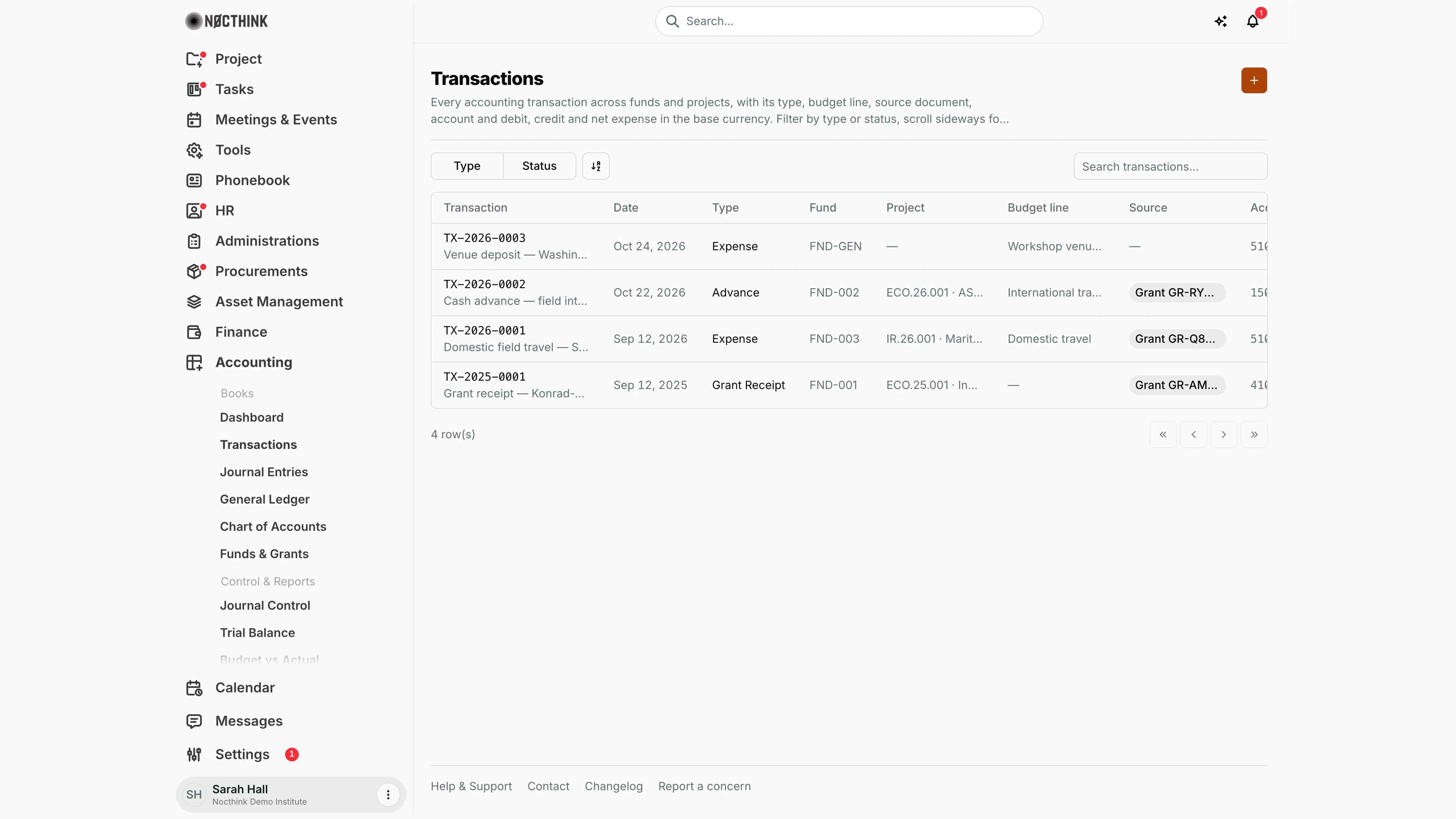
Screenshot: Sarah Hall (Finance Manager, also holds the F.A.T Manager role), Nocthink Demo Institute demo data. Currency, Debit, Credit, Net expense and Status sit off-screen to the right of Account; scroll the table sideways to see them (e.g. TX-2026-0003 is $4,500.00 debit, Draft; TX-2026-0002 is $1,200.00 debit, Pending Approval; TX-2025-0001 is $21,661.54 credit, Posted).
Why I use this page
Transactions is the register of operational money events, kept separately from the double-entry journals: grant receipts, expenses, advances, advance settlements and allocations. Each one is tagged with a fund, project, budget line and source document. I add a transaction when an event has to be tracked by fund and budget line before or alongside its journal. Once the matching journal is posted, I mark the transaction as Posted.
What's on the screen
- Header — the title Transactions, a description, and an orange + button (New transaction) on the right.
- Toolbar — the Type and Status checkbox filters (their options come from the rows on the current page), a sort/view control, and a Search transactions… box that searches descriptions.
- Table — the first column, Transaction, stays in place while I scroll sideways. It shows the transaction ID (a link to the detail page) with the description underneath, cut short with "…" when long. The other columns are Date, Type, Fund, Project (the project number and name, e.g. ECO.26.001 · ASEAN Digital Trade Outlook, worked out from the fund, the linked grant or the project code; a code that matches no project is shown as typed), Budget line (the line's name, e.g. International travel), Source (a pill naming the source type and document, such as "Invoice INV-…" or "Grant" with the grant number or donor, e.g. Grant GR-RYJ4KW5), Account, Currency, Debit, Credit, Net expense and Status. Only Rejected is shown in red; the other statuses are neutral.
- Pager — the server sends 100 rows per page. The row count and page buttons are at the bottom.
- Detail page (click a transaction ID) — the Value and classification section shows Date, Type, Original amount, Exchange rate, Debit and Credit in the base currency, Account, Fund, Project, Budget line and Source document. The source document links to the customer invoice, supplier bill or payment it came from.
How I …
Record a new transaction
- Click + (New transaction); see New transaction below.
- Fill in Transaction ID, or leave it blank and the server numbers it
TX-<year>-<0001>from the transaction date. IDs must be unique in the organization. - Set Date. The server requires it.
- Enter a Description (required).
- Pick Type: Grant Receipt, Expense, Advance, Advance Settlement or Allocation. Status is Draft or Pending Approval; a transaction becomes Posted only once its journal is posted.
- Leave Status as
Draft. The allowed values areDraft,Pending Approval,PostedandRejected. - Optionally fill in Project code and Budget line as text.
- Check Currency (it defaults to the base currency) and enter Debit or Credit in the base currency. Both must be 0 or more.
- Click Create transaction. Net expense is calculated as debit minus credit.
Find a transaction
- Use Type or Status to filter, or type part of the description into Search transactions….
- The filters and search apply only to the page that is loaded. Use the pager to look at older transactions.
- Click the transaction ID to open its detail page (see Transaction detail below), and follow Source document to the original invoice, bill or payment.
Move a transaction to Posted
- Create the matching journal in Journal Entries and have it posted (posting requires the F.A.T Manager).
- The journal must be linked to this transaction (
source_transaction). That link is set through the API; the new-journal form has no field for it. - Changing the status to Posted is an API update. This page has no edit form. The server refuses the change unless a Posted journal is linked, and unless debit or credit equals original amount × exchange rate (to within 1).
Detail page, forms & dialogs
Transaction detail
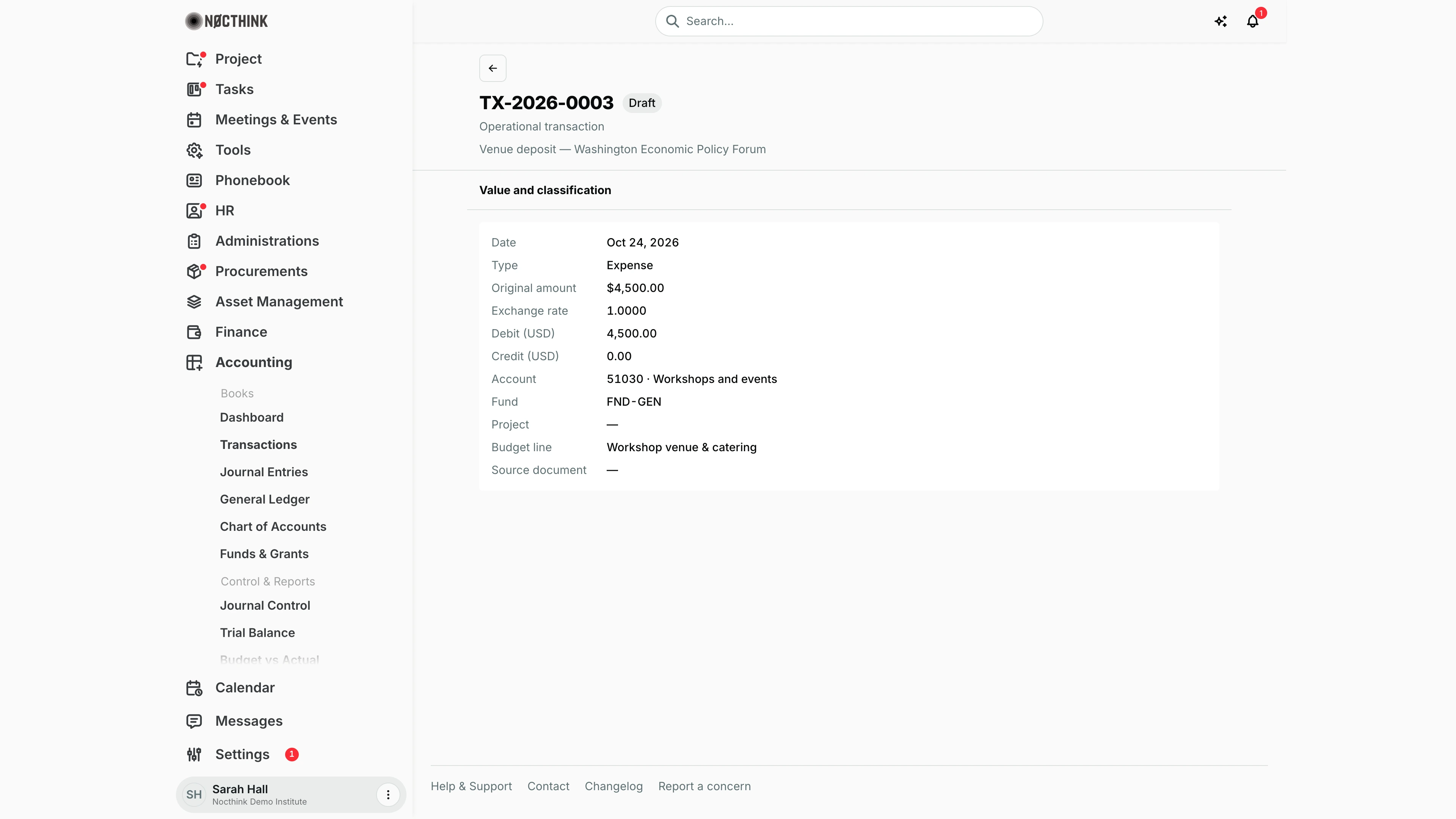
Screenshot: Sarah Hall (Finance Manager, also holds the F.A.T Manager role), Nocthink Demo Institute demo data.
Clicking a transaction ID opens its detail page. The header reads Operational transaction with the transaction ID, its status pill (Draft, Pending Approval, Posted or Rejected) and the description; the back arrow returns to Transactions.
The Value and classification panel lists Date, Type, Original amount in the transaction's own currency, Exchange rate, Debit and Credit in the base currency, Account (code · name), Fund, Project, Budget line and Source document. When the transaction came from another module, Source document is a link: Customer invoice opens the receivable in Finance, Supplier bill opens the procurement invoice, and Payment opens the payment release. Otherwise it shows the source label or "—".
The page is read-only. There is no edit or post button here: I use it to check that the amounts and coding match the source before the matching journal is posted in Journal Entries.
New transaction
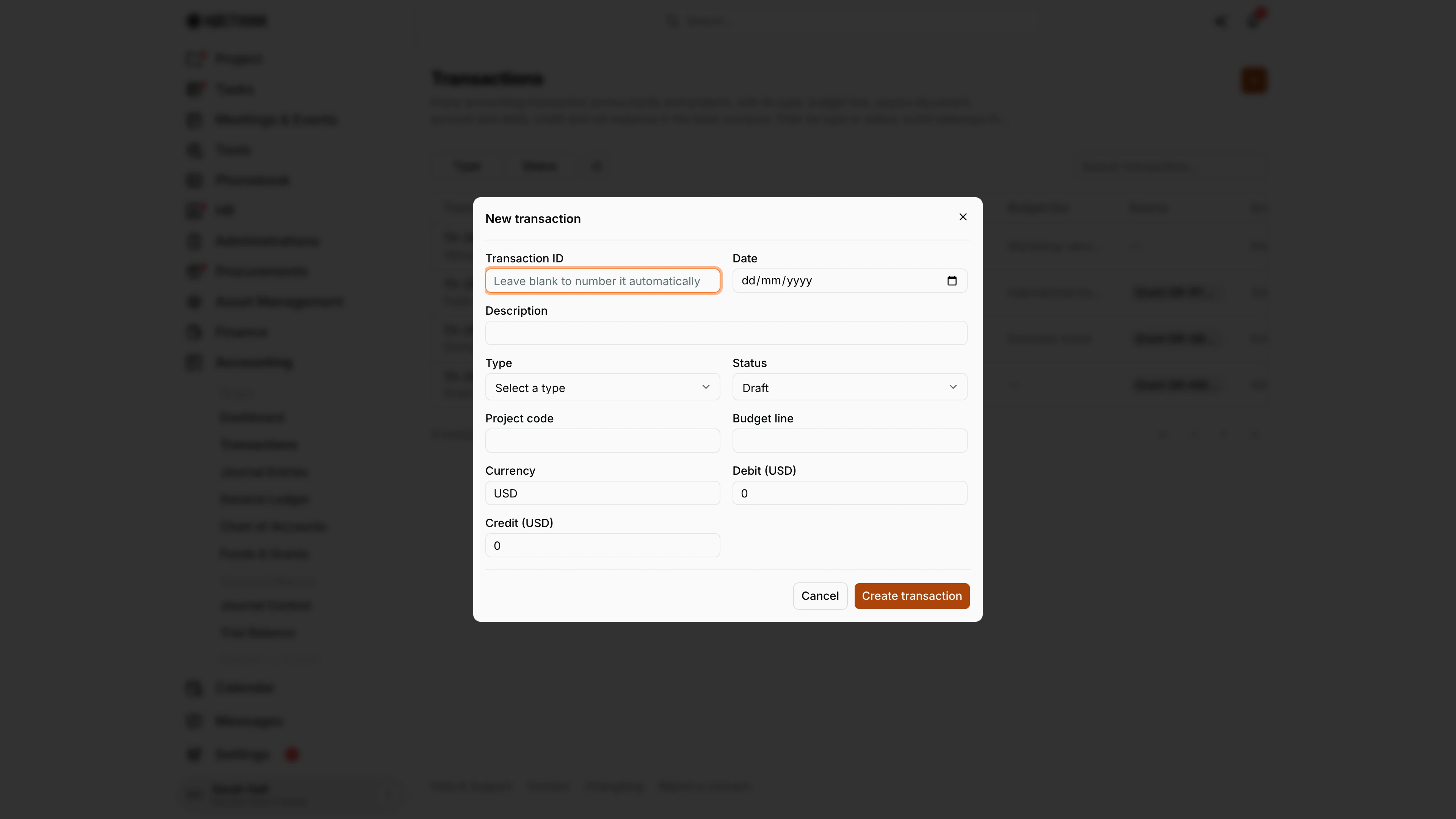
Screenshot: Sarah Hall (Finance Manager, also holds the F.A.T Manager role), Nocthink Demo Institute demo data.
The orange + in the header opens New transaction. The fields are Transaction ID (placeholder "Leave blank to number it automatically"), Date, Description, Type (Select a type, then Grant Receipt, Expense, Advance, Advance Settlement or Allocation), Status (only Draft or Pending Approval for a new record), Project code and Budget line as free text, Currency, and Debit and Credit in the base currency.
Date, description, type and currency are checked before saving, and a missing value shows under its field. Create transaction saves the record and closes the dialog; Cancel discards it. The new row has no journal yet, so its status cannot become Posted until a journal is linked and posted (see "Move a transaction to Posted" above).
Access & permissions
- To see the page I need accounting authority: the
accounting-stafforfat-managerrole, oraccounting.approve. Owners and Directors always have access. - Creating transactions needs
accounting.create, which both Accounting Staff and the F.A.T Manager have. - Deleting needs
accounting.delete. No seeded accounting role has it, so only an Owner or Director can delete, and only through the API. - Finance Staff and Finance Manager are read-only here: their seeded roles include
accounting.view, and the server lets finance authority withaccounting.viewread the books. They can't create, change or post anything on this page.
Caveats
- The form has no fields for Fund, Account, original amount or exchange rate. Transactions created here therefore show "—" for Fund and Account, and their original amount is 0.
- Debit and credit are always in the base currency. The currency field is only a label unless an original amount and exchange rate are sent through the API.
- Transactions do not feed the ledger. The General Ledger, the Trial Balance and the statements read only posted journals.
Limitations
- No edit or delete buttons. The detail page is read-only.
- No fund or account picker in the create dialog.
- No export, no bulk actions, and no row selection (it is turned off).
- Filters only cover the 100 rows on the current page.
- No transactions are created automatically. The Source column fills only when the API sets a source link, and none of the procurement or finance screens do so today.
Related menus
- Journal Entries — the posted journal a transaction must link to before it can be Posted.
- Funds & Grants — the funds a transaction is charged to.
- Journal Control — shows the transaction type and ID as the source of the linked journals.
- Customer Invoices, Supplier Bills, Payments — the source documents a transaction can point to.