
Budget vs Actual
Open in NocthinkModule: Accounting · URL: /accounting/budget-vs-actual · Responsible role: Accounting Staff · Also used by: F.A.T Manager (full), Owner/Director (full); Finance Staff / Finance Manager (read-only)
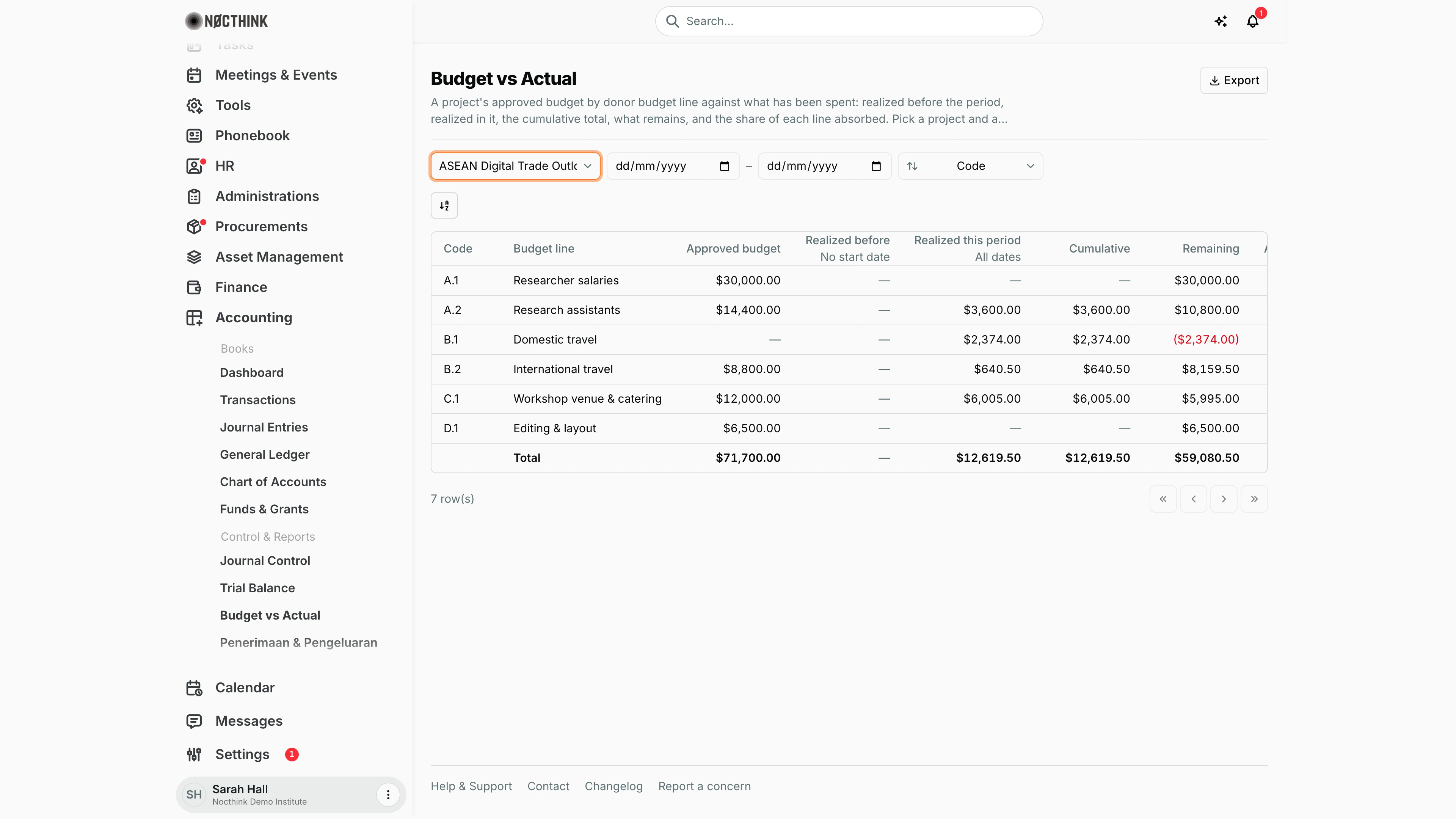
Screenshot: Sarah Hall (Finance Manager, also holds the F.A.T Manager role), Nocthink Demo Institute demo data, with project "ASEAN Digital Trade Outlook" selected and no period dates.
Why I use this page
I use Budget vs Actual to report a project's budget realization by donor budget line: what the donor approved, what we spent before the reporting period, what we spent in it, the cumulative spend, what is left and the share absorbed. I open it at the end of every donor reporting period and whenever a programme manager asks how much is left on a line before committing new spend. The exported PDF/Excel is the sheet I attach to the donor financial report.
What's on the screen
- Header:
- the title Budget vs Actual and a short description;
- an Export button on the right. It is disabled until a project is selected and its data has loaded.
- Toolbar:
-
Project dropdown, set to ASEAN Digital Trade Outlook in the screenshot. It starts on All projects, which shows only the prompt "Select a project to see its budget realization." until I pick one project.
-
Period from and Period to date fields (dd/mm/yyyy). Both are blank in the screenshot.
-
Sort by dropdown with these options:
- Code, the default, in the server's donor-code order;
- Approved budget;
- Cumulative;
- Remaining;
- Absorbed.
The Total row always stays last.
-
Reset period appears only when either date is filled, and clears both.
-
A column/view control sits on its own line under the filters.
-
- Table, one row per donor budget line. The screenshot shows:
- A.1 Researcher salaries;
- A.2 Research assistants;
- B.1 Domestic travel;
- B.2 International travel;
- C.1 Workshop venue & catering;
- D.1 Editing & layout.
- Columns:
- Code and Budget line: the donor budget code (or the project budget item code) and its name, in two columns frozen on the left.
- Approved budget: the grant allocations to that budget item, converted to the base currency at the grant's rate.
- Realized before: spend dated before Period from. The sub-label shows the date, or "No start date" as in the screenshot.
- Realized this period: spend from Period from to Period to. The sub-label shows the range, or "All dates".
- Cumulative: Realized before plus Realized this period.
- Remaining: approved budget minus cumulative, shown in red when negative.
- In the screenshot, B.1 Domestic travel has no approved budget, so $2,374.00 of spend shows as ($2,374.00) in red.
- Absorbed: cumulative ÷ approved, as a percentage. It turns red above 100% and shows "—" when there is no approved amount. In the screenshot this column is just off-screen to the right.
- Total row (bold), at the bottom. In the screenshot:
- Approved budget $71,700.00;
- Realized this period $12,619.50;
- Cumulative $12,619.50;
- Remaining $59,080.50.
- Footer: the row count, "7 row(s)", and the pager.
- Number formats: zero amounts show as a dash and negatives in parentheses, matching the donor's own sheet.
How I …
How I prepare a donor budget realization for a reporting period
- Open Accounting → Control & Reports → Budget vs Actual.
- Pick the project in the Project dropdown.
- Set Period from to the first day of the reporting period and Period to to its last day.
- Read Realized before (everything up to the day before the period), Realized this period, and Cumulative.
- Check Remaining and Absorbed for lines in red — those are overspent against the approved budget and need a variance explanation or a budget revision.
- Click Export and choose the format (see next task).
How I export the report
- With a project selected and the table loaded, click Export.
- Choose:
- PDF — landscape statement with the organisation letterhead, project name and period.
- Excel — workbook with the organisation header, project and "Period: …" subtitles; Absorbed is formatted as a percentage.
- CSV or JSON — raw data for my own working papers.
- The file is named
Budget_vs_Actual_<ProjectName>with the matching extension. - The export follows the current Sort by choice.
How I find which lines are closest to running out
- Pick the project and leave both dates empty (cumulative to date).
- Set Sort by to Remaining — lines with the least (or negative) remaining come first.
- Alternatively choose Absorbed to rank lines by percentage used.
How I check a single line's spend
- Note the code of the line in question.
- Go to the General Ledger or Journal Entries and filter by the project to see the individual postings behind it.
Access & permissions
- Visible under Accounting → Control & Reports to users with
accounting.view. - The API (
GET /accounting/budget-realization) uses the accounting gate: Owner/Director or accounting authority (accounting.approve, or theaccounting-staff/fat-managerrole). - The page is read-only; budgets are maintained on the project's funds and budget items, actuals through posted journals.
- Finance Staff and Finance Manager are read-only here: their seeded roles include
accounting.view, and the server lets finance authority withaccounting.viewread the books. They can't create, change or post anything on this page.
Caveats
- A project is mandatory; with All projects the server would reject the request ("Select a project to report its budget realization."), so the page simply waits.
- Period from must be on or before Period to, otherwise the server returns a validation error shown above the table.
- Only Posted expense journals count as actual spend. Drafts, journals pending in Journal Control, and unposted AI drafts are excluded.
- Period to caps all spend; anything dated after it is ignored, even in Cumulative.
- Actuals are matched to a line by donor budget code taken from the linked cash advance, project expense or grant allocation, falling back to the budget item code. Expense lines with neither are left out of the report entirely — if totals look low, look for postings without a budget item.
- If a grant has no exchange rate on the fund and none can be found for its date, the report fails with "Fund … has no … exchange rate; set one on the fund or the project." Fix the rate on the project fund.
- All amounts are in the organisation's base currency.
Limitations
- One project at a time; no consolidated multi-project view.
- No commitments (open POs) column — only posted actuals.
- No drill-down from a line to the postings behind it.
- No column search or filters beyond project, period and sort.
Related menus
- Funds & Grants — the accounting funds that link journals to the project.
- Journal Entries — the posted expense journals that make up the actuals.
- General Ledger — line-level detail for a budget line.
- Penerimaan & Pengeluaran — the cash-basis receipts and disbursements report for the same project.
- Project Finance — where project budgets and expenses are managed on the finance side.
- Functional Expenses — expense analysis by function rather than budget line.