
Trial Balance
Open in NocthinkModule: Accounting · URL: /accounting/trial-balance · Responsible role: Accounting Staff · Also used by: F.A.T Manager (full), Owner/Director (full); Finance Staff / Finance Manager (read-only)
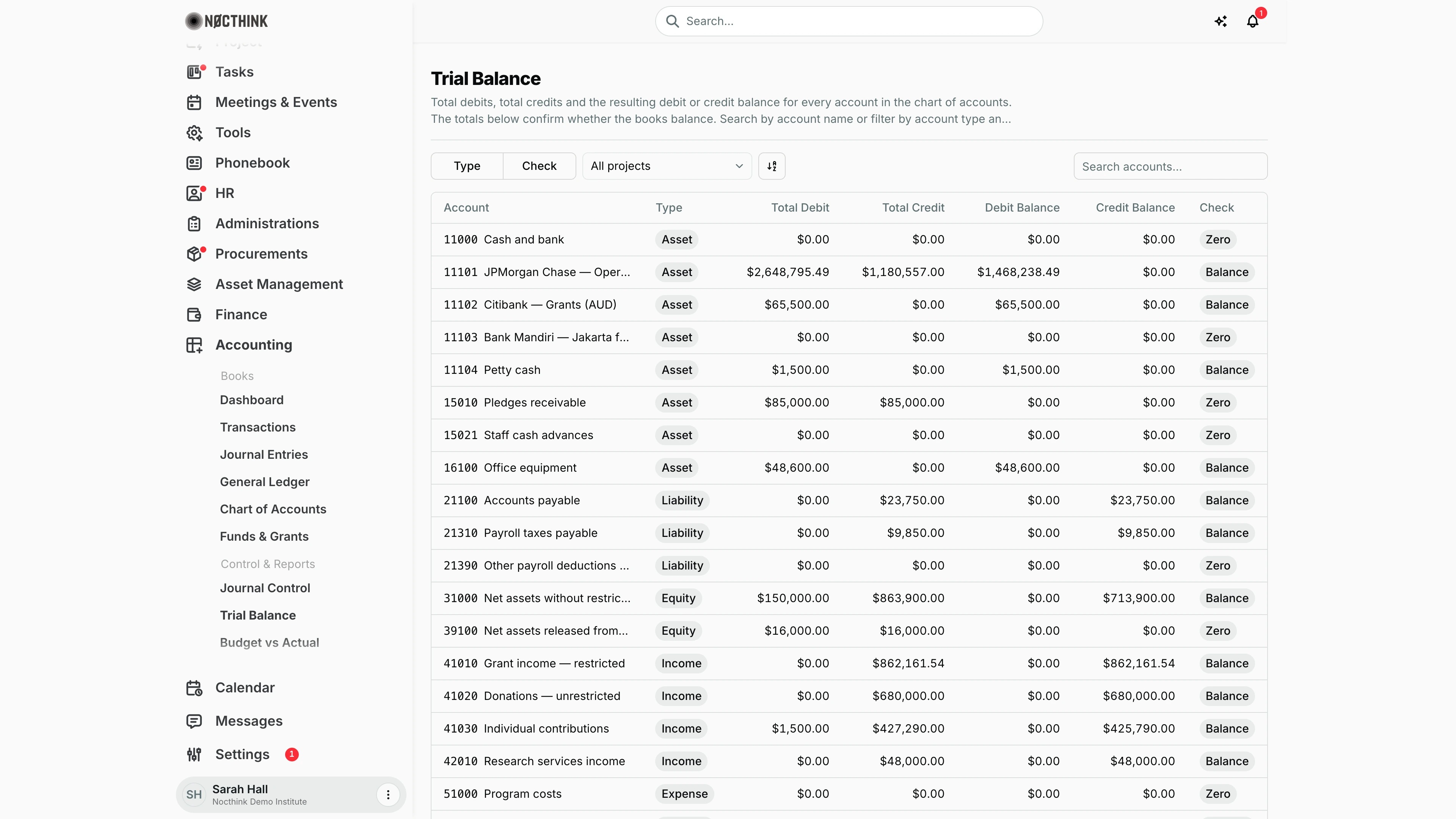
Screenshot: Sarah Hall (Finance Manager, also holds the F.A.T Manager role), Nocthink Demo Institute demo data. The footer card with the totals is below the fold; it reads $2,763,451.54 on both sides and Balanced.
Why I use this page
I use the Trial Balance to prove the books balance before I hand anything to the F.A.T Manager. Every account in the chart of accounts is listed with its posted debits and credits, and the footer tells me in one word whether total debit balances equal total credit balances. I open it after a batch of postings, before every period close, and whenever a financial statement looks off and I need to see which account carries the odd balance.
What's on the screen
- Header — the title Trial Balance and a short description. There are no action buttons; the page is read-only.
- Toolbar (left to right):
- Type filter — checkboxes for Asset, Liability, Equity, Income, Expense.
- Check filter — checkboxes for Balance (account has a non-zero balance) and Zero (debits and credits net to nothing, or no activity).
- Project dropdown — All projects by default, or one project from the Project module.
- A sort-direction toggle button.
- Search accounts… on the right — matches the account name.
- Table columns:
- Account — account code (monospace) followed by the account name on the same line (long names are cut short with "…"); this column stays frozen when the figures scroll sideways.
- Type — the account type pill.
- Total Debit / Total Credit — the sum of debit and credit lines on that account from posted journals.
- Debit Balance / Credit Balance — the net of the two; only one side is ever non-zero.
- Check — Balance or Zero.
- Footer card (below the table) — Total debit balance, Total credit balance, and a pill that reads Balanced or Unbalanced (the latter in red).
The table shows up to 200 accounts on one page so the statement is never split.
How I …
How I check that the books balance
- Open Accounting → Control & Reports → Trial Balance.
- Leave the project dropdown on All projects and clear any Type / Check filters.
- Scroll to the footer card and read the pill. Balanced means total debit balances equal total credit balances to the cent.
- If it reads Unbalanced, compare the two footer totals, then go to Journal Entries to find the posted journal that caused it (a correctly posted double-entry journal cannot unbalance the TB, so look for data imported or edited outside the normal flow and raise it with the F.A.T Manager).
How I review only the accounts that carry a balance
- Open the Check filter and tick Balance.
- Optionally open Type and tick, say, Expense to review spend accounts only.
- Read down Debit Balance / Credit Balance. An Asset or Expense account sitting on the credit side (or an Income/Liability account on the debit side) is worth a second look in the General Ledger.
How I produce a trial balance for one project
- Open the project dropdown and pick the project.
- The table reloads with only lines whose fund belongs to that project — funds linked to the project directly, to one of its project funds (grants), or to a matching fund code.
- Check the footer. A project-level TB can legitimately read Unbalanced if a journal mixes lines from this project's fund with lines that have no fund or another fund (only the in-scope lines are counted).
- Switch back to All projects when done.
How I find a specific account
- Type part of the account name into Search accounts… (for example
Payroll). - The search matches the name, not the code; to find by code, scroll — rows are ordered by account code.
Access & permissions
- The menu sits under Accounting → Control & Reports and needs
accounting.viewin the sidebar and route guard. - The API (
GET /accounting/trial-balance) uses the accounting gate: Owner/Director, or a user with accounting authority (accounting.approve, or theaccounting-staff/fat-managerrole). - Nobody can change data on this page; all fixes happen through journals.
- Finance Staff and Finance Manager are read-only here: their seeded roles include
accounting.view, and the server lets finance authority withaccounting.viewread the books. They can't create, change or post anything on this page.
Caveats
- Only journals with status Posted are counted. Drafts, journals waiting in Journal Control, and AI drafts in the AI Workbench do not appear until they are posted.
- There is no date filter: the figures are cumulative from the first posted journal to today. It is not an "as of month-end" trial balance; for that I need to wait until the period is closed and nothing later has been posted, or use the statement pages.
- Amounts are shown in the organisation's base currency (the demo tenant uses USD); journals in other currencies are already converted at posting.
- Zero in the Check column covers both "never used" and "debits equal credits" accounts.
- The project filter works through fund links. Lines without a fund never show in a project-scoped view.
Limitations
- No export (Excel/PDF) and no print layout on this page.
- No as-of-date or date-range selector, and no comparison to a prior period.
- Rows are not clickable; to drill into an account I go to the General Ledger or Chart of Accounts.
- Search matches the account name only, not the code.
Related menus
- Journal Entries — where the posted lines behind every figure come from.
- Journal Control — journals awaiting approval are not yet in the TB.
- General Ledger — line-by-line detail for an account with an odd balance.
- Chart of Accounts — the account list and types used here.
- Period Close — I confirm Balanced before the period is locked.
- Financial Position and Comprehensive Income — the statements built from the same posted balances.